
API Keys
The API Keys section lists all your OAuth apps. Each app has its own API Key and API Secret, which are used to authenticate your trading application with the Samco Trade APIs.
Creating an OAuth App
On the API Keys page, click Create New App.
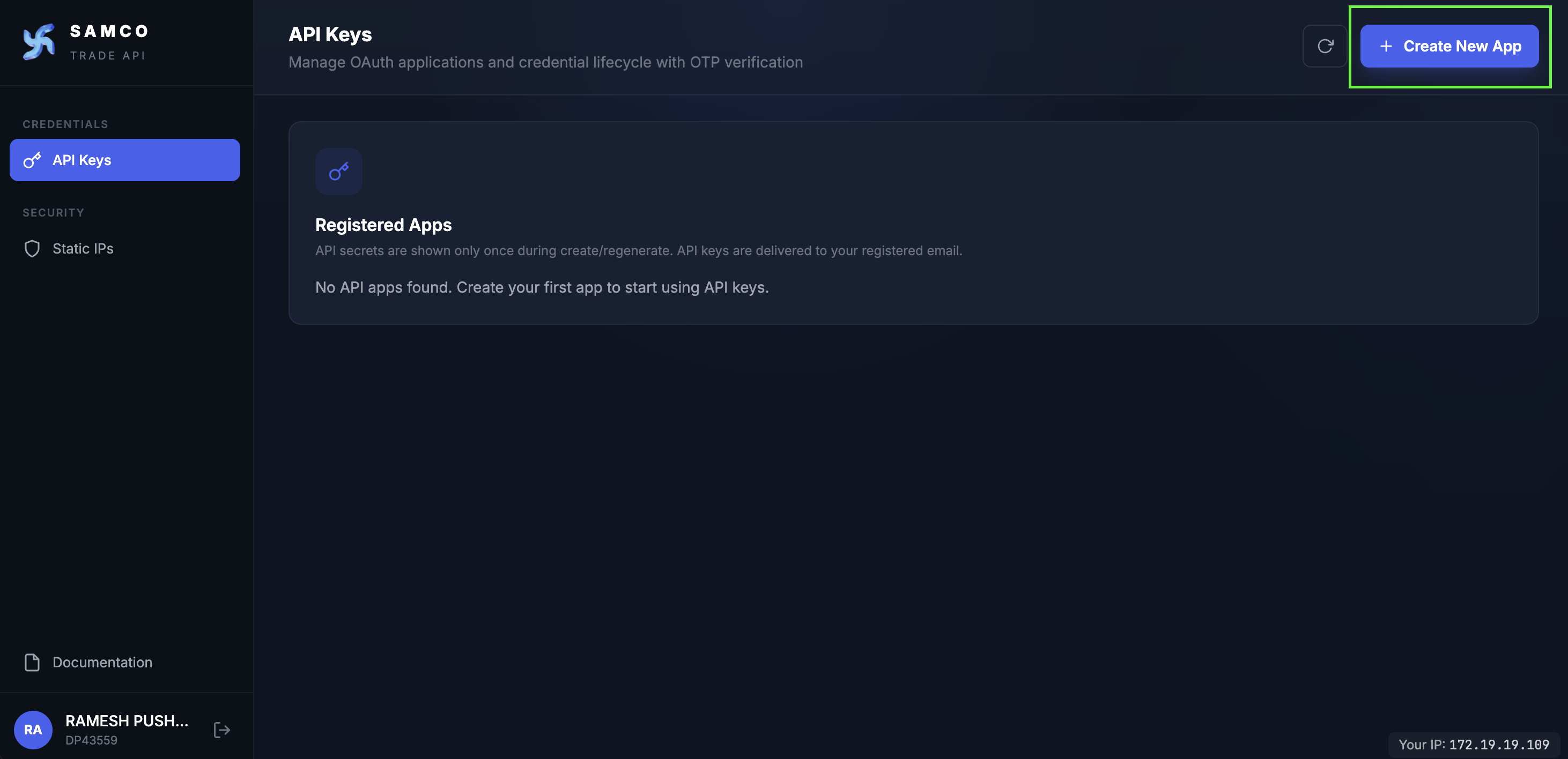
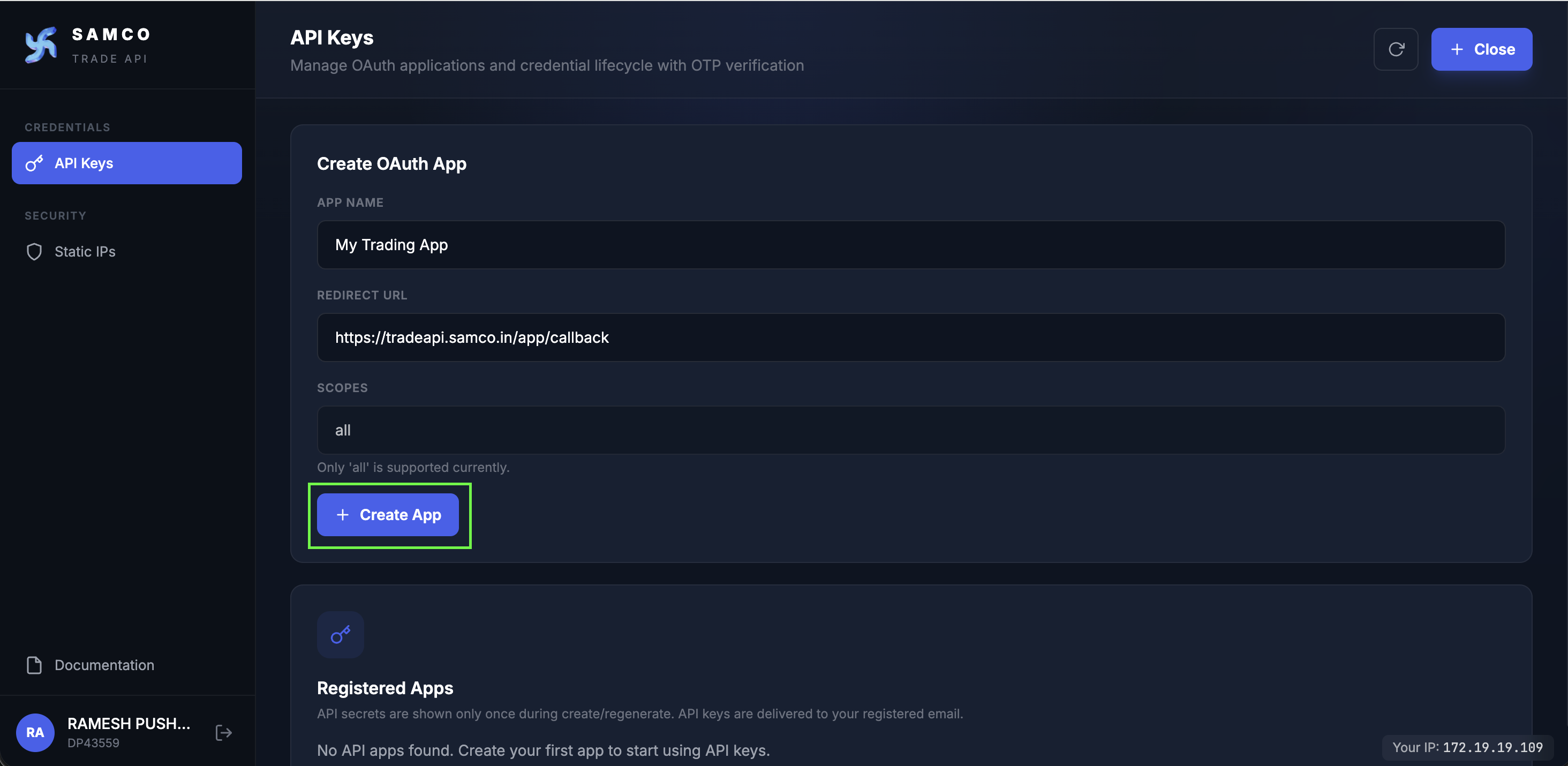
Fill in the form:
| Field | Description |
|---|---|
| App Name | A descriptive label (3–100 characters), e.g. My Trading App. Must be unique across your apps — comparison is case-insensitive and ignores surrounding whitespace. Deactivated apps still hold their name. |
| Redirect URL | The HTTPS URL users are redirected to after OAuth login. https://tradeapi.samco.in/app/callback is allowed for testing. |
| Scope | Displayed as all and not editable — granular scopes are not yet supported. Every app you create today is issued the full all scope. |
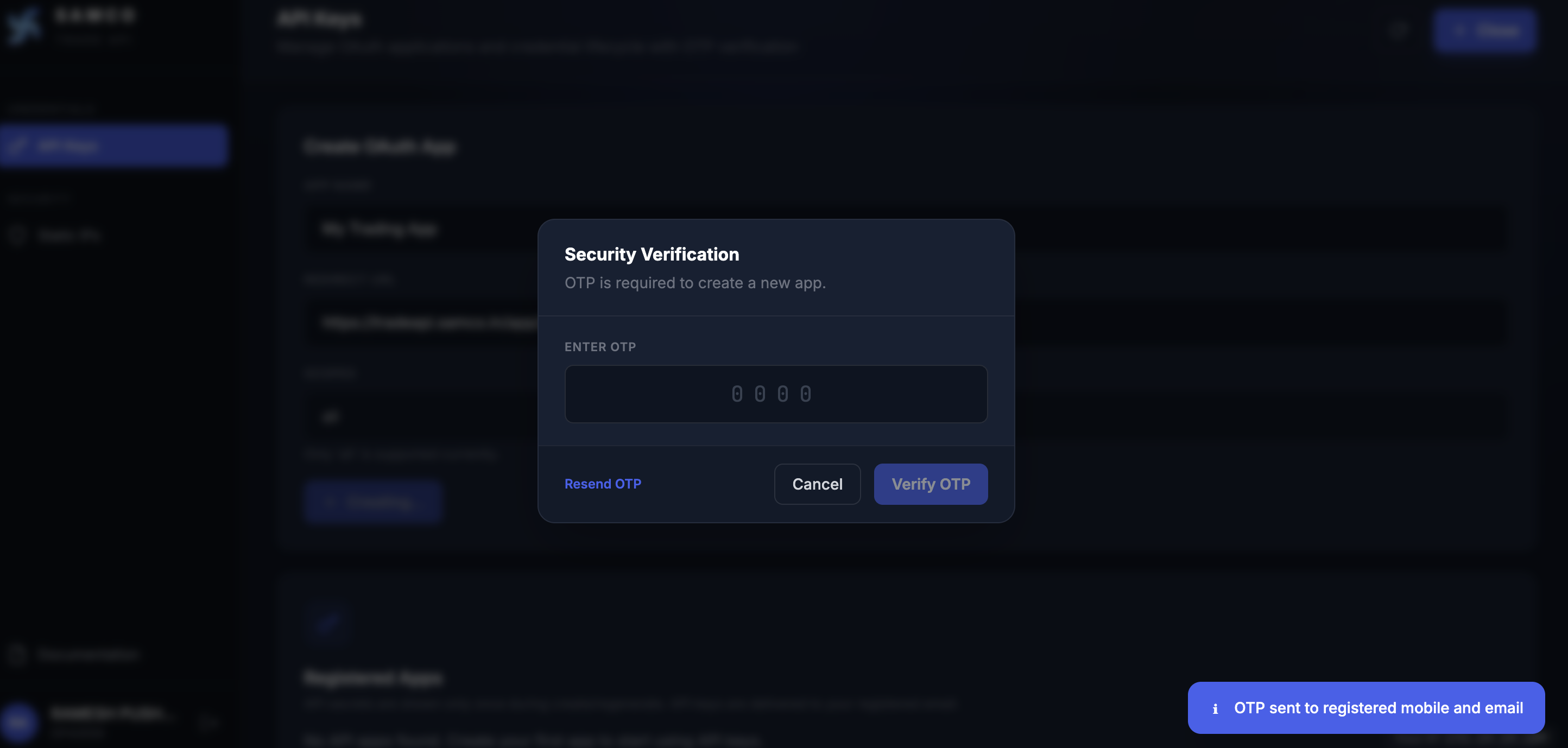
Click Create App. An OTP will be sent to your registered mobile and email.
Enter the OTP and click Verify OTP.
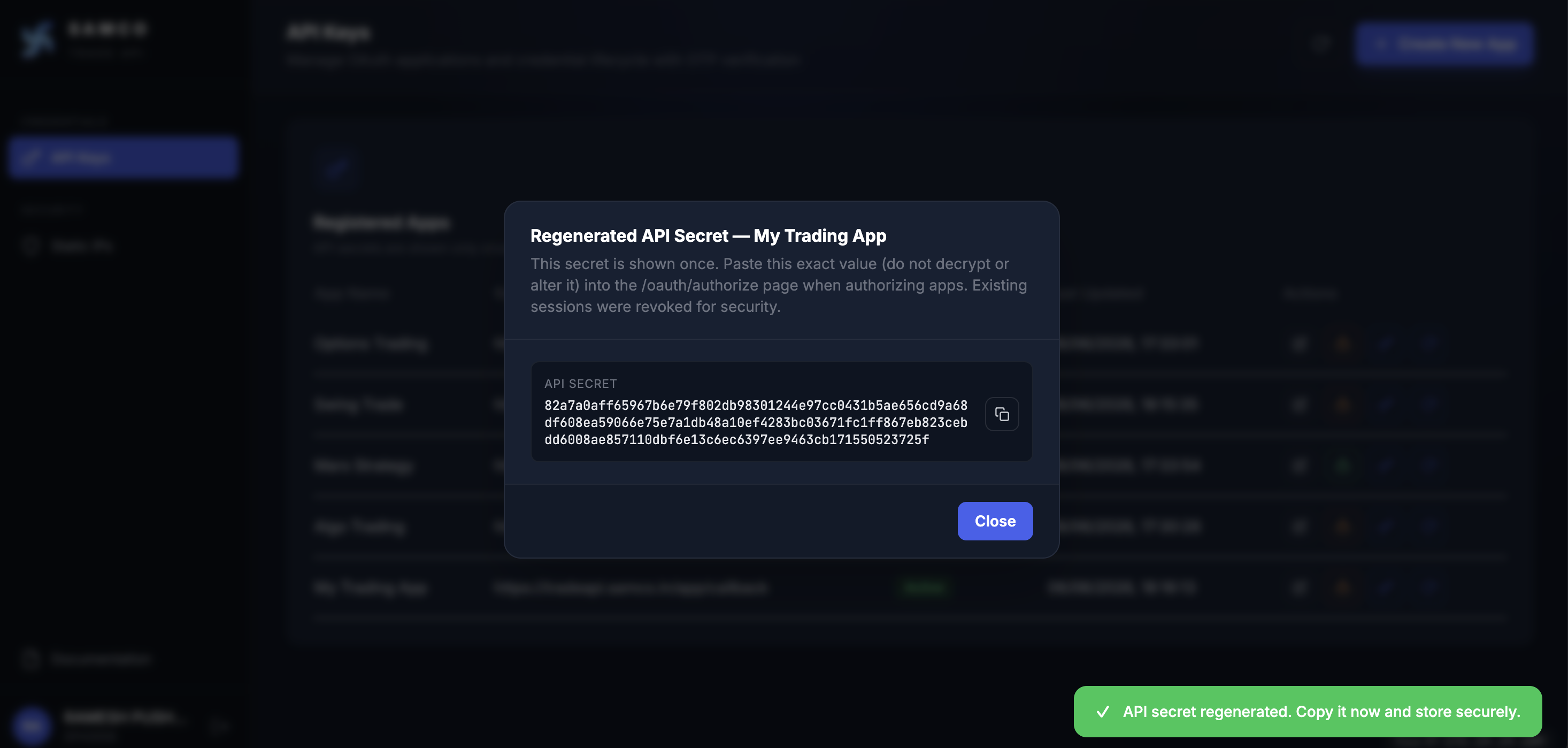
On success, the API Secret is displayed once — copy and store it securely. The API Key is delivered to your registered email. The modal title includes the app name so you can confirm which app the credentials belong to when you create multiple apps in a row.
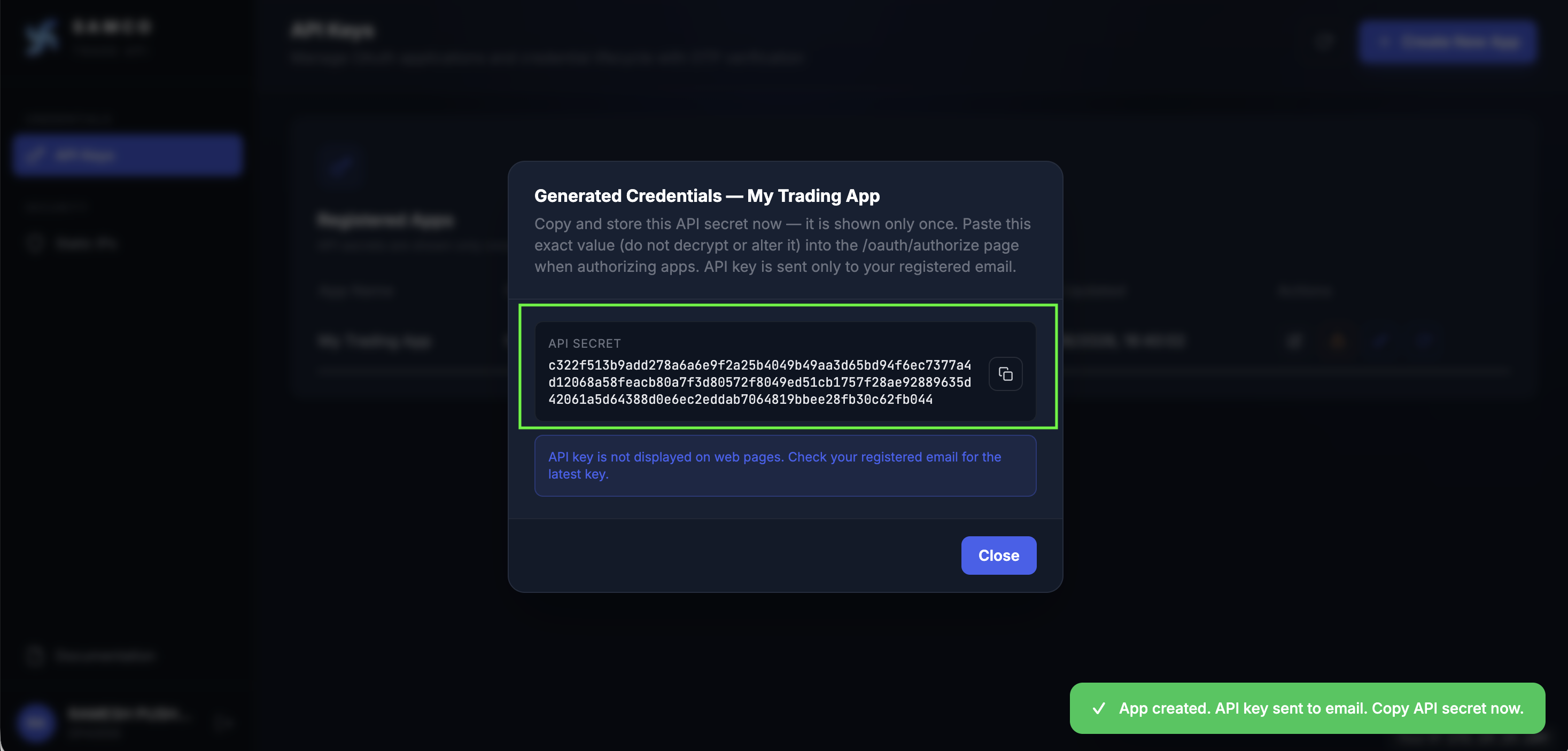
Save your API Secret now
The API Secret is shown only once. If you lose it, you must regenerate it, which invalidates all active sessions for that app.
App limit
You can have up to 5 OAuth apps. Deactivate keeps the app on file when you don't need it temporarily; the slot is not freed because app deletion is not currently exposed in the dashboard.
Viewing App Details
The Registered Apps table on the API Keys page has the following columns:
| Column | Description |
|---|---|
| App Name | The label you gave the app at creation time. |
| Redirect URL | The HTTPS callback configured for the OAuth flow. |
| Status | Active (green) or Deactivated (red). |
| Last Updated | Timestamp of the most recent change (falls back to created time if untouched). |
| Actions | Per-row icon buttons — see below. |
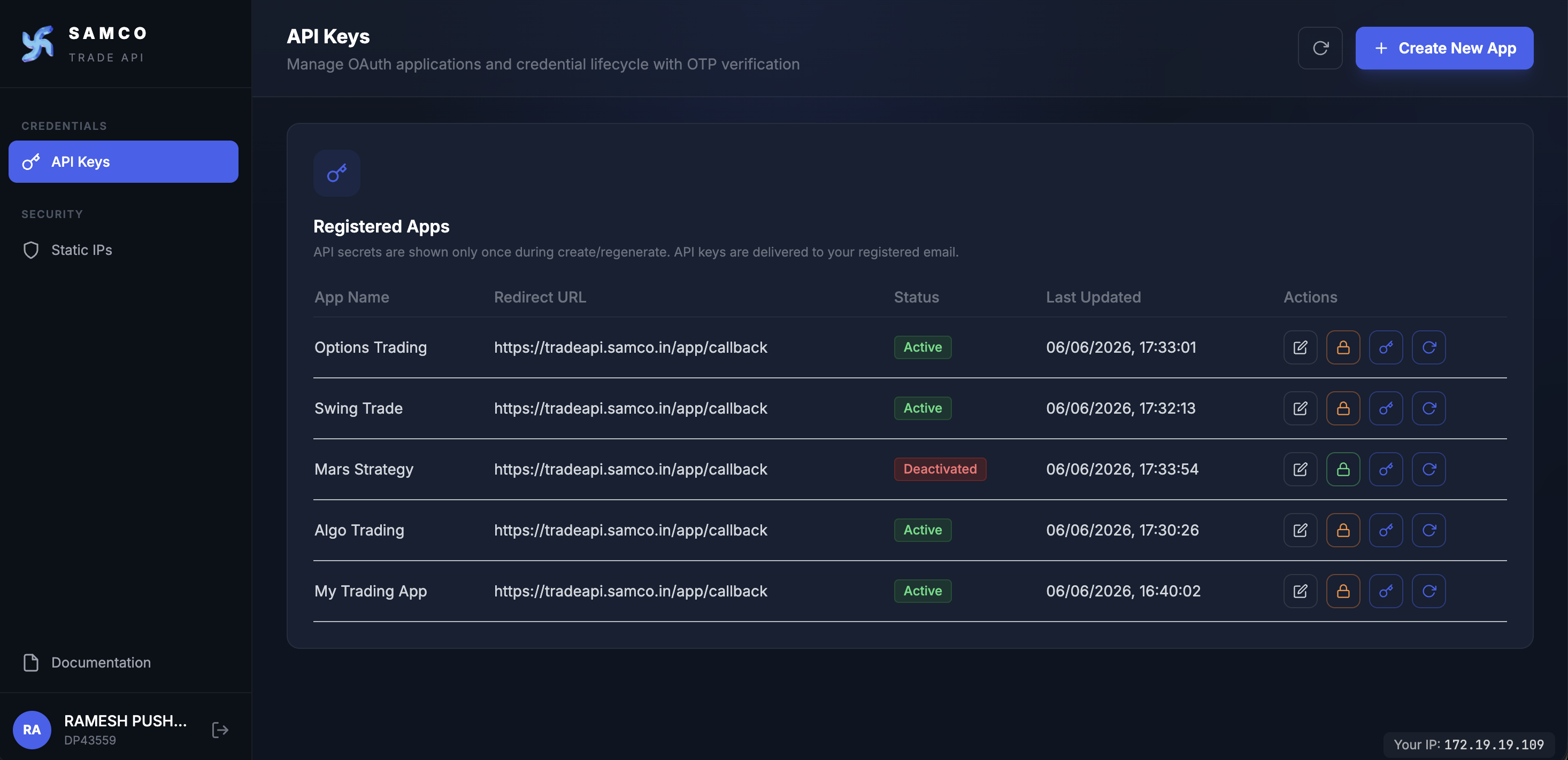
Each row exposes four action buttons, left to right. The icons below are the exact glyphs rendered by the dashboard:
| Icon | Tooltip | Action | Notes |
|---|---|---|---|
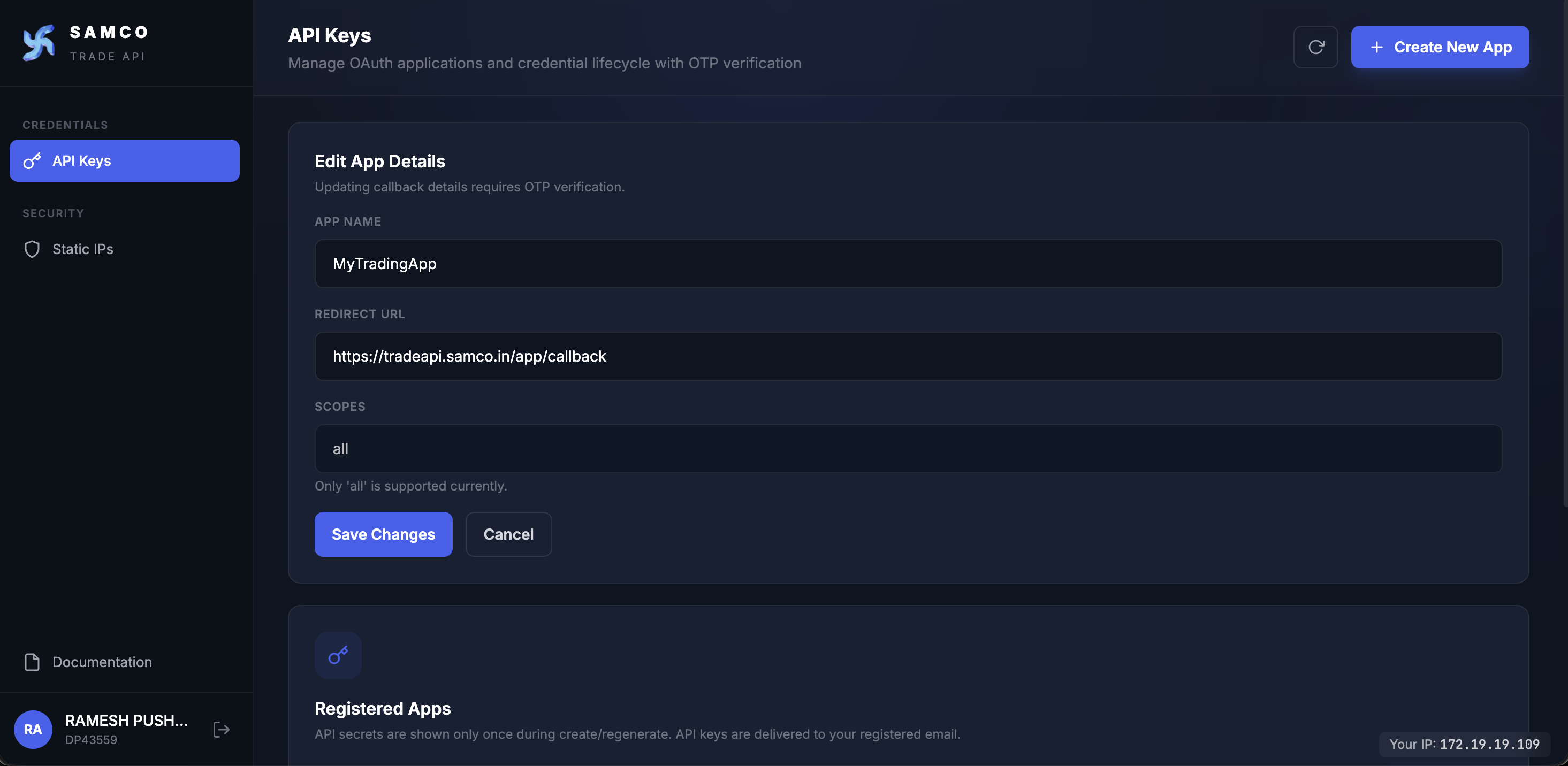
| Edit app details | Edit | Update App Name / Redirect URL. OTP required. | |
| Deactivate app / Activate app | Toggle status | When Active, deactivates the app and revokes all active sessions + deregisters static IPs. When Deactivated, re-enables the app. | |
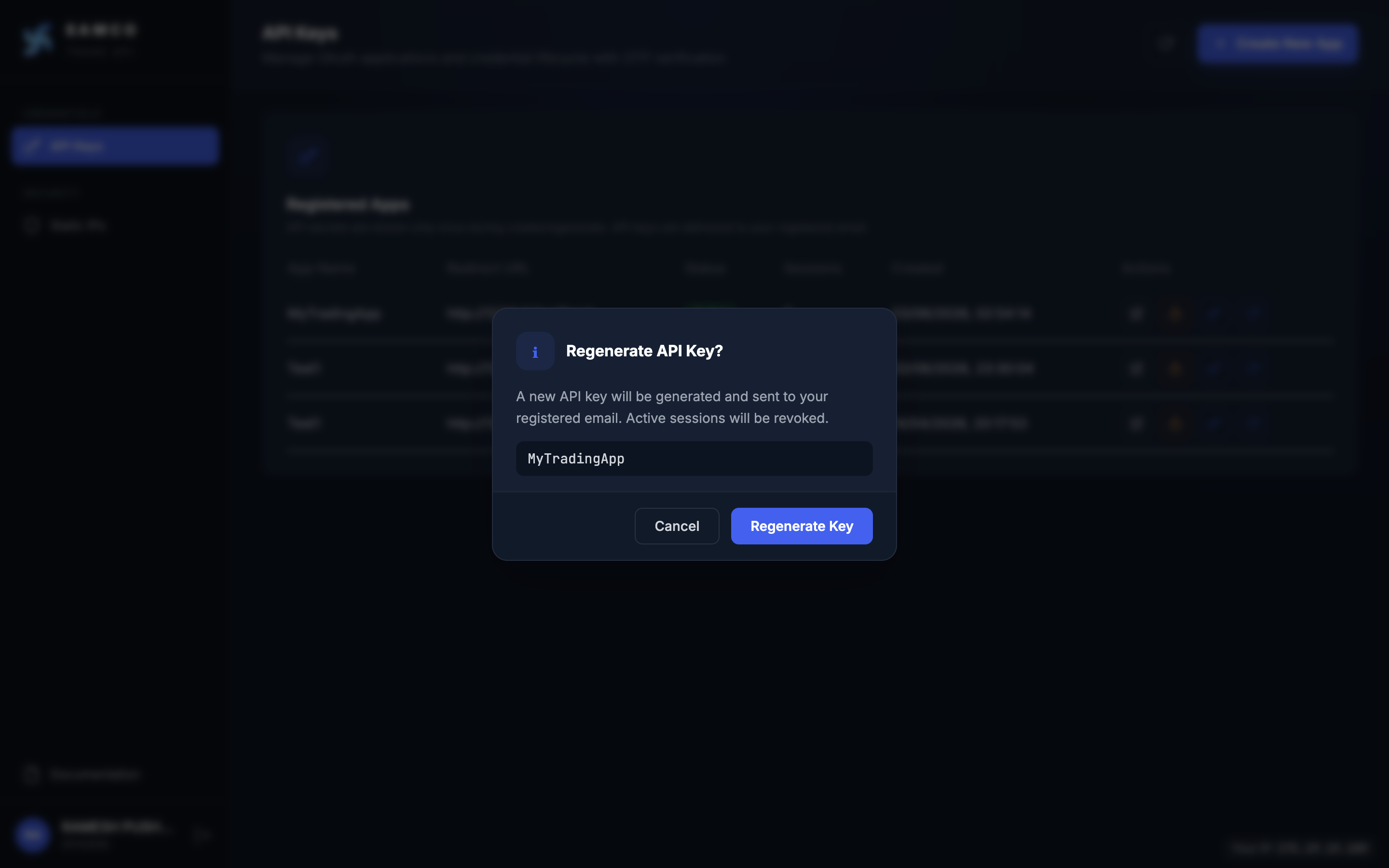
| Regenerate API key | Regenerate Key | Issues a new key, emailed to your registered address. Revokes active sessions. | |
| Regenerate API secret | Regenerate Secret | Issues a new secret, shown once in a modal. Revokes active sessions. |
Delete is not supported
The dashboard does not currently support deleting an app. Use Deactivate to revoke an app you no longer want — its slot is retained but the credentials stop working.
Regenerating Credentials
| Icon | Action | Effect | Delivery |
|---|---|---|---|
| Regenerate API Key | All active sessions for this app are revoked; a new key is issued. | Emailed to your registered address. | |
| Regenerate API Secret | All active sessions for this app are revoked; a new secret is issued. | Shown once in the dashboard — copy immediately. |
Both actions require OTP confirmation.
When you regenerate the secret, the new value is displayed once in a modal whose title includes the app name — copy it before closing:
Editing an App
Click the Edit icon on an app row to update:
- App Name
- Redirect URL
Scope is fixed at creation time and cannot be changed here. Credentials (API Key / API Secret) are not changed by editing — use the row's Regenerate actions for those. OTP confirmation is required.
Deactivating an App
Click the Deactivate icon on an app row and confirm with OTP to temporarily disable the app without removing it. You can re-enable it later by clicking the same icon (tooltip changes to Activate app).
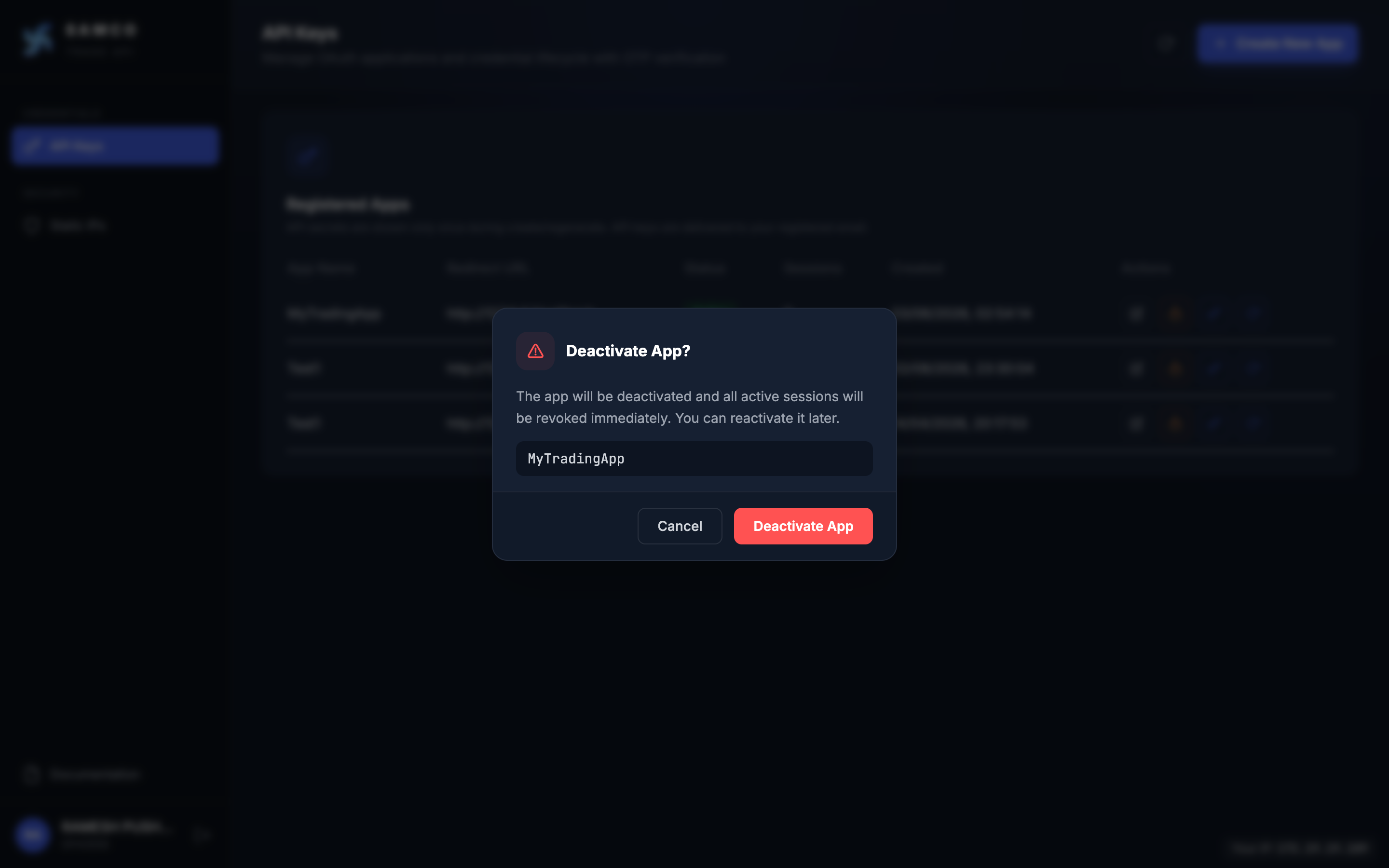
On deactivation:
- All active sessions and tokens for this app are immediately revoked.
- The app's API Key and Secret stop working.
- Static IPs registered to this app are deregistered.
- The app row stays in your dashboard with status Deactivated — switch it back to Active any time.
- The slot still counts toward your 5-app limit. App deletion is not currently exposed in the dashboard.
Source IP in the footer
The dashboard footer shows the source IP our server sees you connecting from (labelled Your IP). Use this to confirm which IP to register for your apps — it is the value SAMCO validates against, which can differ from what a "what is my IP" website shows due to NAT or VPN. See Static IPs for the IP management UI.